SIMO for Zoom

Captions in Zoom. Audio where playback is controlled.

SIMO’s Zoom workflow is built for real meeting constraints: room-code binding, translated captions in the Zoom surface, language selection, and optional listener audio through a controlled playback route.

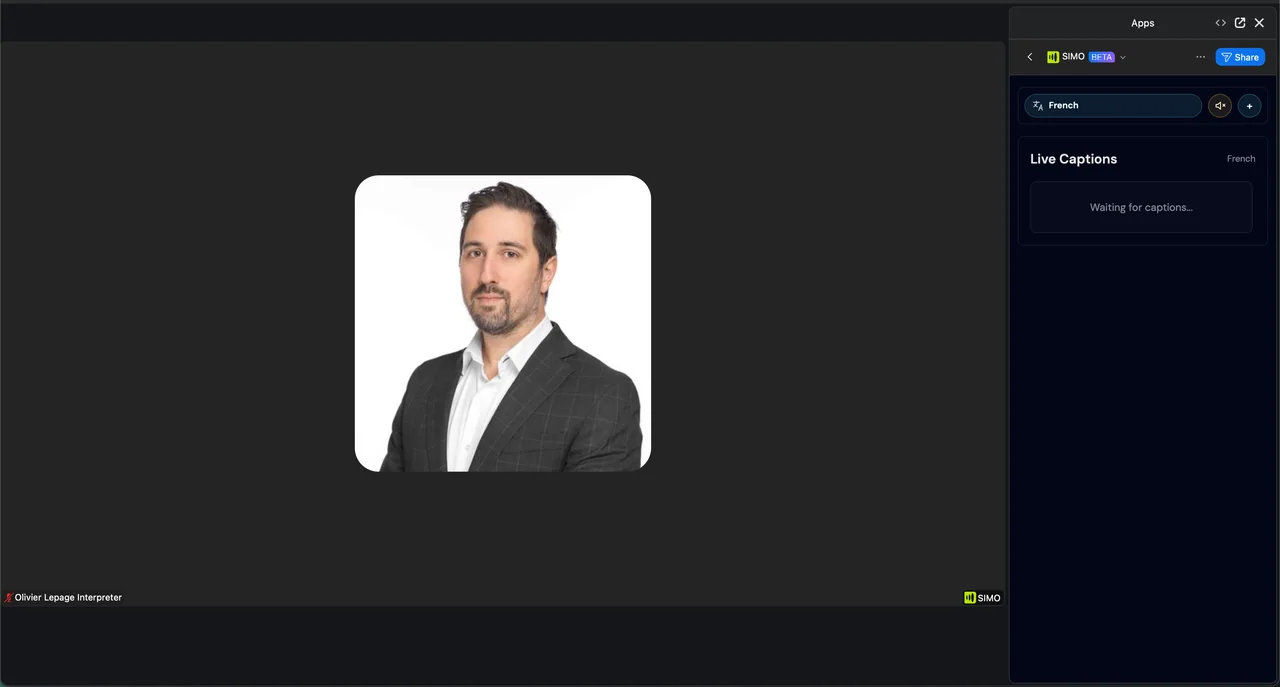
SIMO running inside a Zoom meeting

Zoom integration

SIMO can run inside Zoom without pretending Zoom audio is simple.

The Zoom flow is built around captions in the meeting surface, managed stream startup, language selection, and a controlled audio handoff when participants need translated speech.

1

Launch in meeting

Zoom app

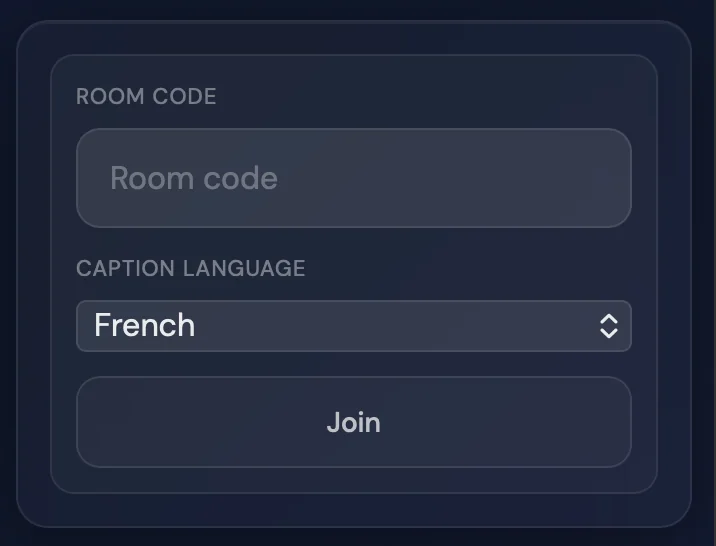
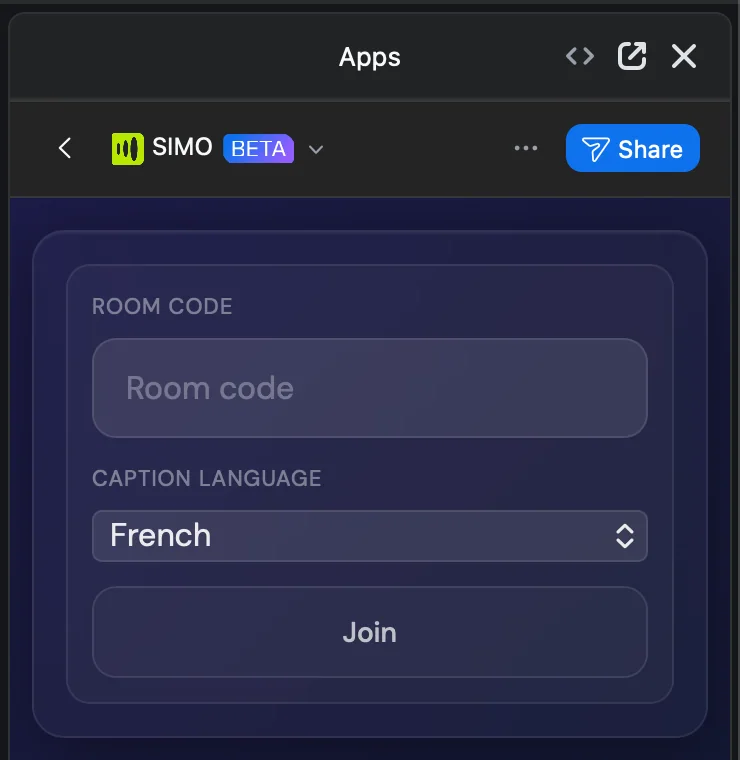
Open SIMO from the Zoom Apps panel and enter the event room code.

2

Start live stream

RTMS active

SIMO binds the Zoom meeting to the room and starts the real-time meeting stream.

3

Choose language

EN / FR

Participants select the caption/audio language they need in the Zoom listener view.

4

Open audio when needed

Audio route

Translated captions stay in Zoom; translated audio can play in-panel or in the external listener page.

Zoom app surface
Join, select language, follow captions
LIVE
SIMO Zoom room-code start screen
SIMO Zoom listener language screen
Signal path
Zoom meeting to SIMO to captions + listener audio

Captions-first in Zoom

The Zoom surface is optimized for translated captions and meeting-safe controls.

Browser audio option

For cleaner playback control, SIMO can open the web listener with the same room and language context.

No duplicate same-language TTS

When the listener language matches the spoken language family, captions remain available while extra synthesized audio is suppressed.

SIMO Zoom app running in a meeting

User flow

What organizers and participants actually do.

  1. 01Add or open SIMO from the Zoom Apps panel.
  2. 02Enter the event room code provided by the organizer.
  3. 03Start the live meeting stream and wait for captions.
  4. 04Choose the language you want to read or hear.
  5. 05Use in-panel audio or open the external listener page when cleaner playback control is needed.

Operational subtleties

The important details from the existing SIMO Zoom pages.

Meeting content sharing

Captions depend on Zoom meeting content sharing being enabled for apps. If captions do not appear, this is one of the first host settings to verify.

Room binding

The Zoom meeting is connected to a SIMO room code so captions, language choices, and listener audio all share the same event context.

No forced ducking

SIMO does not claim to lower Zoom native meeting audio independently. The current model is captions in Zoom plus listener-controlled translated audio.

Uninstall behavior

When SIMO is removed from Zoom, active Zoom session state is stopped and Zoom deauthorization/compliance handling is completed.

Support and privacy

The old Zoom pages were practical. This keeps that usefulness.

Zoom buyers and hosts need to know what SIMO touches, what it keeps, and what to send when support needs to diagnose a live meeting.

What SIMO processes

Meeting audio is processed in-stream to generate captions, translations, and optional synthesized audio. Room codes, language selections, timestamps, and meeting identifiers are used to route the live session.

Retention posture

The current Zoom runtime is designed for real-time delivery and does not create a durable full-meeting transcript archive. Routing metadata and operational logs remain governed by the privacy policy.

Support packet

For meeting support, provide the room code or meeting UUID, selected language, what happened versus what was expected, a screenshot, and the approximate time of the issue.